Sep 19, 2026
How to Set Up Call Alerts for Your Monitors in StatusEagle
When a critical service goes down at 3 a.m., an email sitting in an inbox or a Slack message buried under other notifications isn't enough — you need something that actually wakes someone up. StatusEagle's Call integration does exactly that: it places an automated phone call to a real number the moment a monitor changes state, using a voice provider you connect yourself.
Step 1: Connect a call provider
Call alerts are powered by your own Telnyx or Twilio account, so StatusEagle never has to manage phone infrastructure on your behalf — you stay in control of the number and the cost. Head to Integrations in the sidebar, find the Call integration, and click to add one. This opens a short setup wizard with three steps.
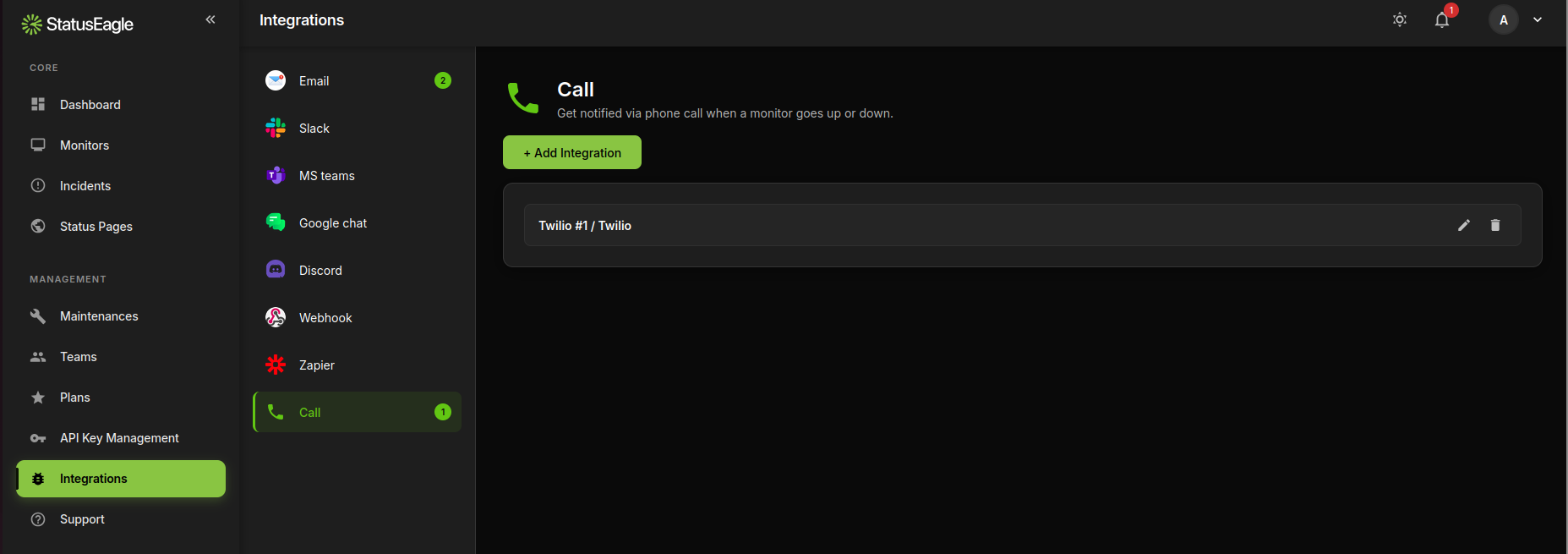
1. Events
Give the integration a name (e.g. "On-call phone") and choose which events should trigger a call:
- Down Events — call when a monitor fails
- Up Events — call when a monitor recovers
- SSL & Domain Expiry — call when a certificate or domain is about to expire
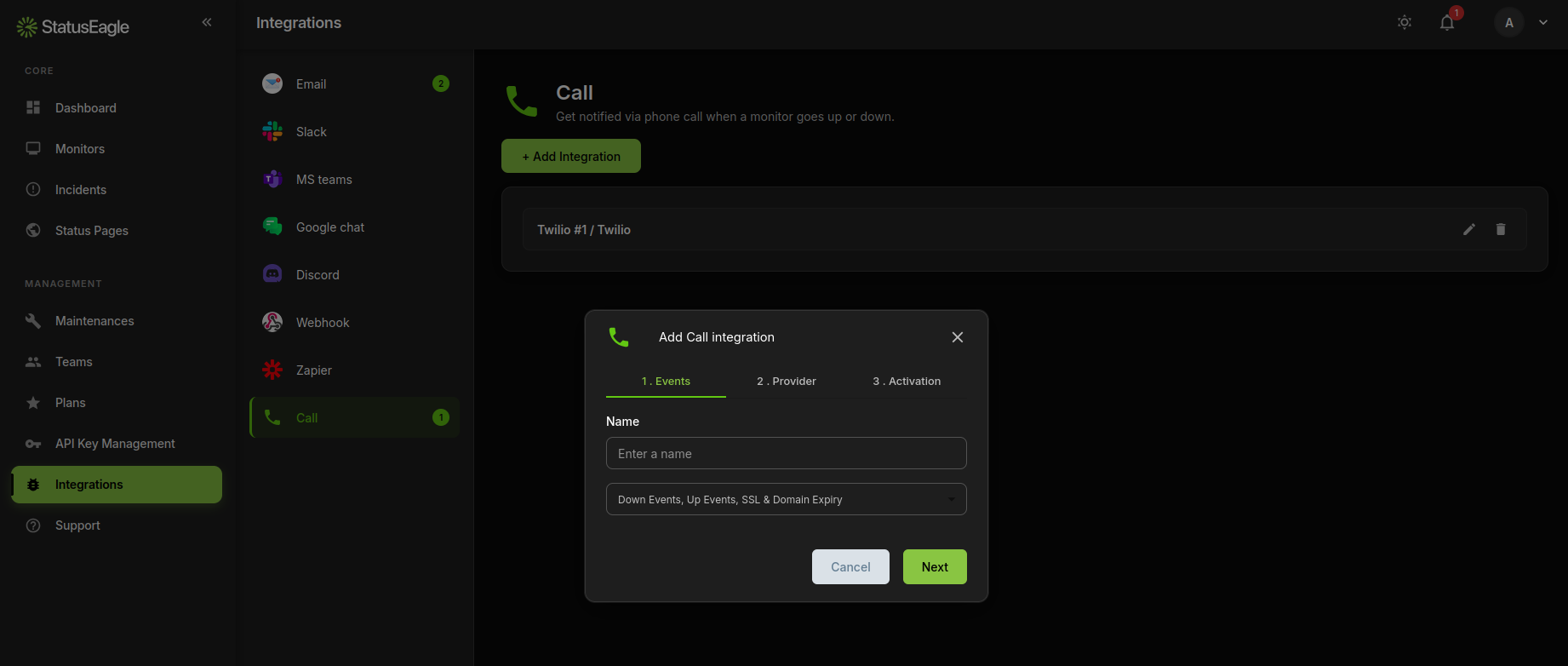
2. Provider
Pick Telnyx or Twilio and enter the credentials from that provider's dashboard:
- Telnyx — API Key, Connection ID, To Number, From Number
- Twilio — Account SID, Auth Token, To Number, From Number
The "From Number" is the number StatusEagle calls out from (provisioned in your provider account); the "To Number" is the phone that should ring during an incident.
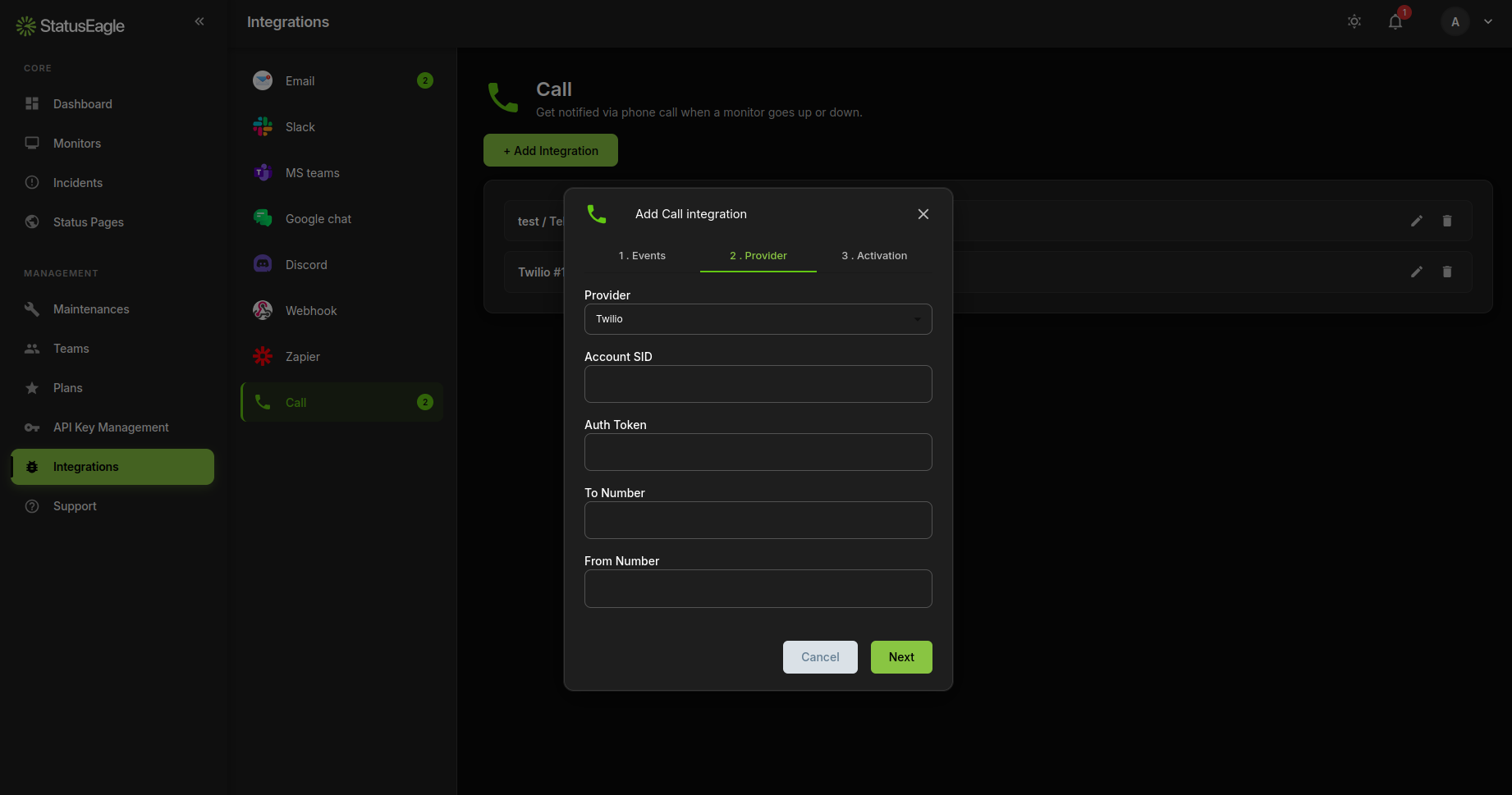
3. Activation
Click Finish to activate the integration. At this point it exists in your account, but it isn't attached to any monitor yet — that's the next step.
Step 2: Enable the call integration on a monitor
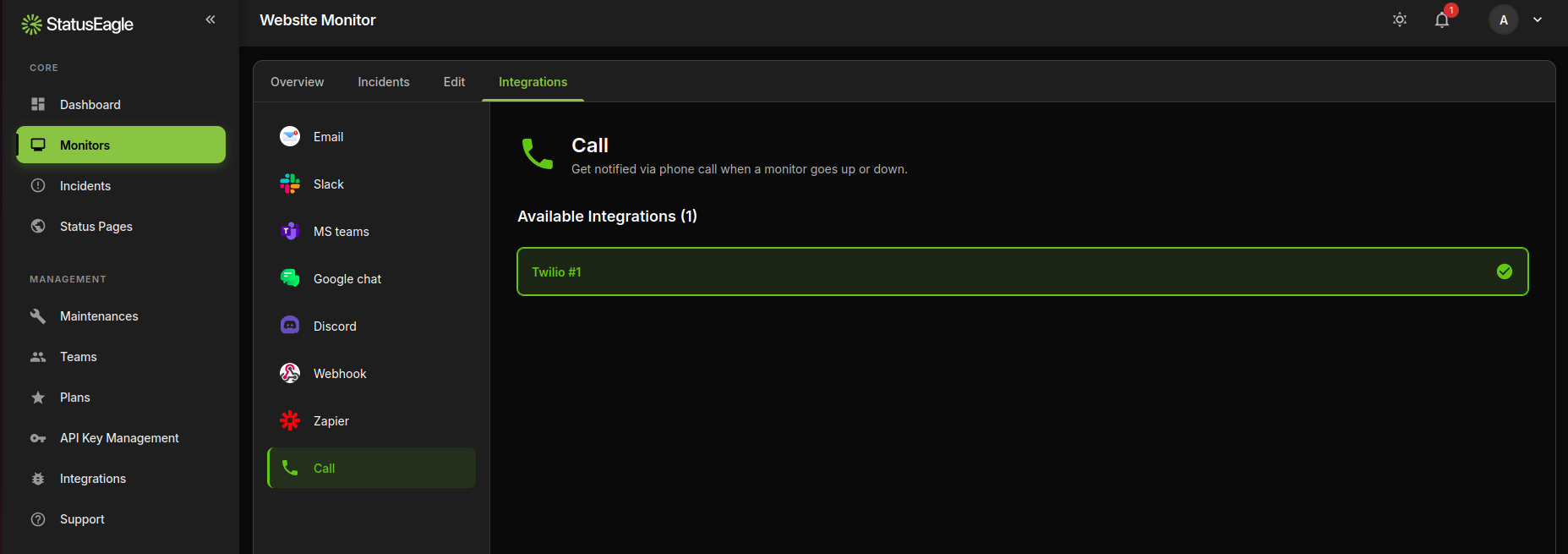
Open the monitor you want to protect and go to its Integrations tab (e.g. /monitors/{id}/integrations). Select Call from the left-hand list of integration types — you'll see every call integration you've created, shown as cards.
Click a card to turn it on for that monitor; a green checkmark means it's active. Click it again to disable it. You can attach the same call integration to as many monitors as you want, and a single monitor can have multiple call integrations enabled at once.
A few practical tips
- Reserve call alerts for monitors where downtime is actually urgent — a call for every low-priority check trains people to ignore it.
- Test the integration once right after setup by intentionally failing a monitor, so you know the call actually reaches the right phone.
- Both Telnyx and Twilio charge per call/minute on their end, so costs scale with how often (and how many) monitors are wired to call.